

How to Use GitHub Copilot in Visual Studio 2022
GitHub Copilot is a coding assistance based on artificial intelligence which is developed based on GitHub and OpenAi. With this tool, programmers write their code faster and much better and efficiently, because this tool gives them intelligent code, directly in a text editor. If you are using Visual Studio 2022, we should say merging it with GitHub Copilot can improve your productivity. This improvement is the result of completing code with the suggestions, offering functions and descriptions of complicated codes.
In this guide we will review the installation process, configuration and use of GitHub Copilot in Visual Studio 2022. In addition, you will understand how to get the Visual Studio 2022 Product Key for FREE. This code will help you take advantage of all of this IDE’s facilities.
Prerequisites
Before starting to use GitHub Copilot in Visual Studio 2022, make sure you have these prerequisites:
- A GitHub Copilot account (Copilot subscription if needed).
- Visual Studio 2022 (professional or enterprise version is suggested).
- Active internet connection.
- A valid license key for Visual Studio 2022 (to access all professional facilities).
If Visual Studio 2022 is not installed on your system, you can download it from Microsoft’s official website or, if you don’t feel like filling out registration forms and going through complex steps 🥱🥱, you can visit DownloadDevTools.com and download all versions of Visual Studio for free, along with the Offline Installer and a valid activation key with just one click.
First step: Install GitHub Copilot plugin
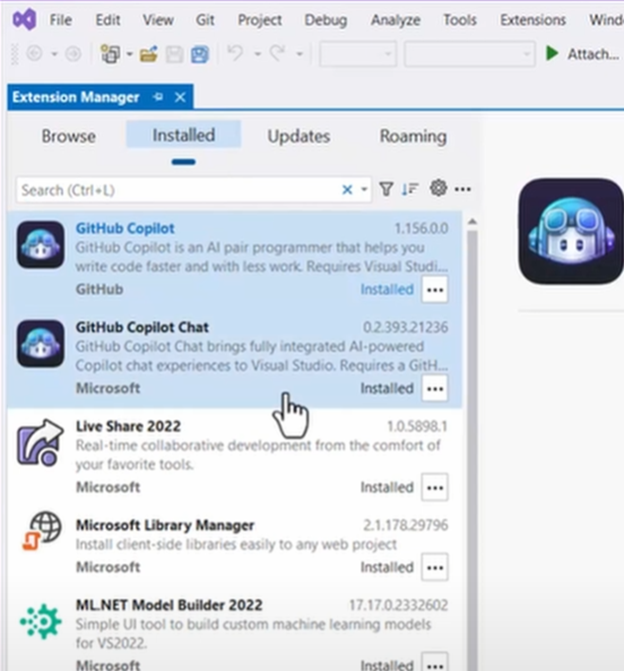
To begin using GitHub Copilot in Visual Studio 2022, you should install the Visual Studio Marketplace plugin.
Installation steps:
- Open Visual Studio 2022.
- Go to Extensions > Manage Extensions.
- In the Manage Extensions window, search for GitHub Copilot.
- Click on download and wait until installation is completed.
- Restart Visual Studio 2022 in order to apply changes.
Step 2: Login GitHub account
After installing the plugin, you should log in into your GitHub account.
Login steps:
- Open Visual Studio 2022 and go to Tools > Options.
- Find GitHub Copilot settings.
- Click on Sign in and enter your account information.
- If you have a GitHub Copilot subscription, it will be activated automatically.
- If you don’t have a subscription, you can register for a free trial of GitHub Copilot or buy your desired plan.
Step 3: Activating GitHub Copilot
After you log in, you have to activate Copilot in Visual Studio 2022 settings.
Activating steps:
- In the Tools > Options menu, find the GitHub Copilot option.
- Activate Enable GitHub Copilot option.
- Choose Suggestion mode (inline suggestion, full function suggestion or disable).
- Click on apply and then OK.
GitHub Copilot is now ready to help you with coding projects.
Step 4: Use GitHub Copilot in Copilot in Visual Studio 2022
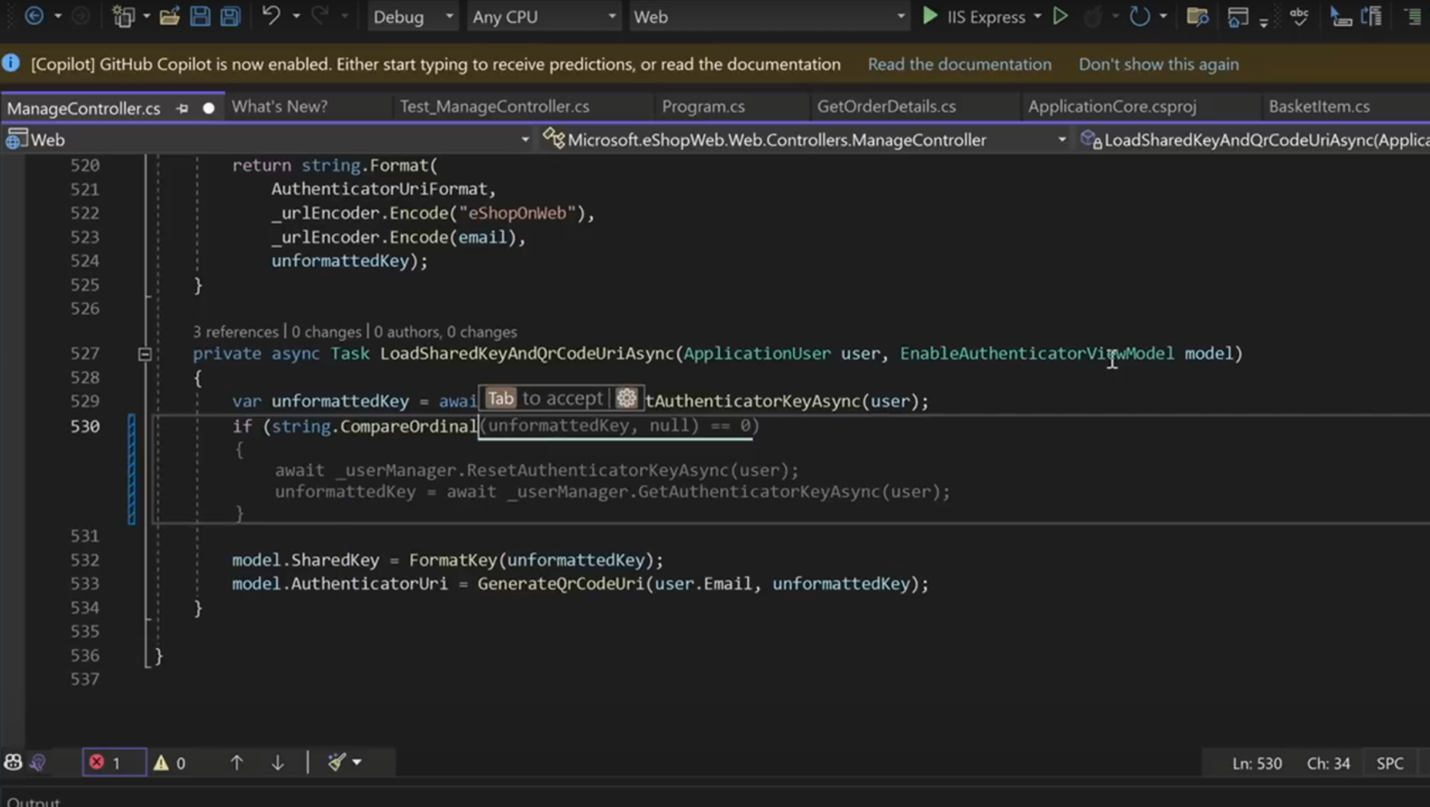
After activation, GitHub Copilot will offer you code suggestions automatically when typing. Here we discuss some methods to use them efficiently.
- Inline code suggestion: Copilot will suggest instant offers, based on your context code. These possible suggestions will be offered to you when writing an expression or a function.
-
- To accept a suggestion, press Tab
- To deny a suggestion, press Esc
- To see some other suggestions, press Ctrl + Space
- Complete function generation: You can generate a complete function with just a few descriptions.
For example:
// generate a function to calculate a factorial of a number
After pressing Enter, GitHub Copilot may suggest you code below:
public int Factorial (int n) {
if (n == 0) returns 1;
return n * Factorial(n – 1);
}
- Description and code learning: Copilot can describe incomprehensible or unclear codes with meaningful descriptions.
Example:
// This function checks if a number is prime
Copilot may suggest:
public bool IsPrime(int number) {
if (number <= 1) return false;
for (int i = 2; i < number; i++) {
if (number % i == 0) return false;
}
return true;
}
- Code reconstruction and optimization: Copilot can also suggest optimized code which can improve code readability and efficiency.
Step 5: Advanced GitHub Copilot settings
For better performance, you can customize Copilot settings:
- Number of suggestion settings: you can increase or decrease the number of AI suggestions.
- Enable for specific languages: limit Copilot for specific programming languages.
- Disable sensitive files: prevent from suggestion of special files.
Activating Visual Studio 2022 with license key
In order to exploit completely from Visual Studio 2022, you must activate it with a valid license key.
How to enter the license key:
- Open Visual Studio 2022
- Go to Help > Register Product.
- Click on Unlock with a Product Key.
- Enter your Visual Studio 2022 license key and click on Apply.
- Restart Visual Studio 2022 to complete activation.
Conclusion
GitHub Copilot is a powerful artificial intelligence assistance that helps Visual Studio 2022 users to accelerate software improvements, coding quality and learn new programming algorithms easily. By following this tutorial, you can install, configure and use Copilot to improve your programming experience. In addition, activating Visual Studio 2022 with a valid key, opens all of its professional features and lets you work without limitation.